
All Comments
4701 to 4720 of 19728Filter comments
No
Hint added
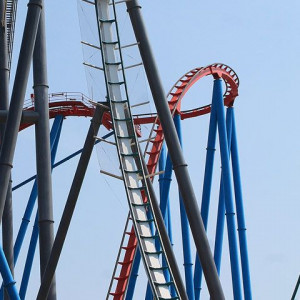
Joker @ Six Flags Discovery Kingdom ?
No, I found the image recolored online
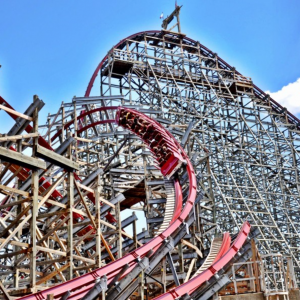
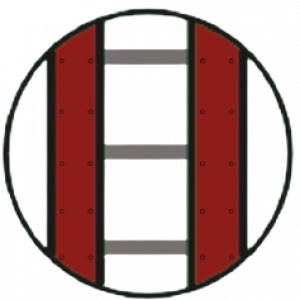
Wicked Cyclone @ Six Flags New England
Image used :
https://rcdb.com/1981.htm#p=57318
Hint added
I managed to solve the problem by changing the script and it works.
Thank you so much
Can we have a hint ?
Good morning everybody. I’m new here so, first of all, please let me know if I do something I shouldn’t or if I accidentally break the rules (though I did read them).
You may skip those tedious paragraphs if you wish (I’d rather you read them) and directly download the two scripting objects and the demo park. You’ll probably know how to use them without the instructions, I made them as intuitive as I could. No scripting skills are needed. If there’s anything you don’t understand or that doesn’t work as expected, try searching for the answer in these paragraphs or simply asking down here.
PLEASE, READ UP TO HERE
Coaster scripting cube
Transfer table controller
Demo park
Steam link
INTRO: This Coaster scripting cube is a project I’ve been working on for a while, mainly aimed at my own learning and practicing some scripting in NoLimits. As I don’t have much experience yet, the code is probably quite improvable, and I might upload better versions in the future, but it does works well. You may have guessed (the name describes itself) that this object contains a script for the coasters to work in scripted operation mode. For me, that’s pretty useful, as it enables me to have the general script of the coaster, and to easily adapt specific blocks behavior through some quick scripting without having to program the whole ride. Before anyone starts complaining, I’m aware that there is some (quite) similar and better stuff out there, but I like using resources of my own (personal pride), so, why not share it? Besides, I’m also uploading an auxiliar cube, the Transfer table controller, and I plan on doing others throughout the summer which might prove pretty more useful than the base object. Anyway, let’s get to the point.
INSTRUCTIONS: To use it, you have to download the files, put them in your park folder and unzip them. If done well, a single folder called "CoasterScriptingCube" should appear then. Do not modify it. Now, in the editor, just select the object from the park base. For the Transfer table controller to work, you must first script the coaster with the Coaster scripting cube (don’t forget to put the coaster in scripted operation mode, in the coaster properties). Just fill the parameters asked in the Scene Object Instance Properties. When done, the coaster should operate almost exactly as if it were in normal operation mode, including functional manual mode for blocks, transfer tables and storages.
There’s a minor difference, though: trains will always be centered in the block before stopping (except lifts), ignoring the brake triggers. Furthermore, my script’s logic goes one step further than the in-game’s (I’d say it’s an improvement), so, on auto mode, trains will always exit the block forwards (like normally), unless there is no following block (just a void); then they’ll exit backwards (this is new). This logic can be reversed by turning the “Exit the block bwd., if possible” parameter on. It can prove useful in several cases, though it will be ignored if the section is a station or a lift, or if no previous block was configured. Finally, there’s another parameter, admittedly a bit weird, that is foremost for the transfer tables to properly work, and that’s the “Adjacent transfer table”. If a block is followed or follows a transfer table (or a tilt track), you have to write the name of that transfer table (of the special track, NOT of the block!); the position the block in question has on it, i.e., the switch direction the transfer track needs to have to be connected with the block in question, starting at 1 (not 0); and finally state whether the transfer table is next or previous to this block, by writing “next” or “prev”. Use dots to separate the three pieces of information: <TransferTable name>.<Pos. (number)>.<next/prev>. I know this may be a bit confusing, but I found it clearer than making three different parameters for just a single goal (properly identifying the transfer table). Take into account that there must be always at least two blocks between two different transfer tables (as you can’t write simultaneously .next and .prev) and a transfer table mustn’t follow nor be followed by another transfer table.
Now, regarding the Transfer table controller, you mustn’t select a switch track, but a transfer table (or a tilt track). It is adviseable to turn the "Complete Stop" in the “Brake Section Settings” on, and it’d be better to give it some waiting time, no matter how short, to make sure the train completely stops. That’s because the wait-time before switching starts when the train totally halts. If you select a track trigger, the transfer table will return to the specified initial position when the train leaves the trigger, or, once leaving the trigger, after a specific additional time, if also the “Return to initial position after a certain time” is a positive number. If no trigger is selected, that return wait-time will start when the train leaves the transfer table.
ERRORS: The script will print the errors that might occur with a quick explanation. If you don’t understand some of them, ask below. If it starts by “Error: …”, then it’s something serious that must be fixed. If it’s “Note: …”, then it’s just a warning or advice, but it will work acceptably well anyway.
DEMO PARK: I’ve uploaded a demo park (see link above) in which you may better understand how to fill all the parameters and properly use both cubes. It is NOT meant to be a decent roller coaster. I am aware that the ride is quite absurd, the trackwork is everything but smooth, the G’s are quite improvable, the supports are horrible and it doesn’t even pass clearance. It is just meant to be an example of the usage of the cubes. There are two normal and interesting easy uses for the Transfer table controller, as well as a very weird one which goes beyond the basic logic of the script and takes advantage of the way it works. It doesn’t seem really useful in the example, but I’m sure that doing similar things and combining several cubes can lead to surprising results.
Thank you for reading through all this, if you have. As said before, I’ll upload other cubes this summer, which will probably be more original and useful. If you find anything improvable or wrong in these two, please let me know. Ask as well if you don’t understand something or if unexpected errors are returned; I’ll be glad to help and to fix my creations if any mistake were to be found. I hope you like them.
SUMMARY
I made these objects for me and for practice and I decided to share them. Extract the files in your park folder. You have to script the coaster placing one *Coaster scripting cube *per block and filling the parameters in the properties. There must be at least two blocks between consecutive transfer tables. Works both on auto and manual mode. Trains will always be centered on the blocks and exit them forwards as long as there is a following block (opposite can be stated in the parameters).
The Transfer table controller is an auxiliar object to be added afterwards, it automatically moves transfer tables. More auxiliar cubes will be upload. See detailed instructions in the objects and hover over the parameters for explanations. You may download the demo park to see examples of the usage of these objects. Please let know if anything is wrong or doesn’t work; I’ll be glad to help.
No problem, feel free to ask again if you have any questions in the future ;)
Yes, it's clearer now, I tried to translate it on the internet but that's not what it said, when it's right you'll just need to put more of them on. Thank you for helping me
Will this help?:
-
Sélectionnez l'objet de freinage dans les fichiers de votre ordinateur, puis ajoutez-le près de la section du bloc auquel il doit être attaché.
-
Cliquez sur l'objet pour ouvrir le panneau des objets de la scène, puis donnez-lui le nom (Name) de la vitesse que vous voulez couper en miles par heure.

- Testez-le en mode jeu.
I just don't understand how it works. I'm French and sometimes I don't understand the English words.
Still a bit confused on your question; do you mean that's not working or?
- Select Object from the files, then add it down near the block section that you want it to attach to
- Click on the object to open up the Scene Object Panel, and then name it how the speed that you want to cut off in MPH
- Test it out in Play Mode
Feel free to ask again if you still have a question :)
RMC It posted on August 2nd, 2021
Do u mean how the scripts work or how to attach them?
Dynamic brake fins, place down near track and set the SCO name to the speed to lower at in miles per hour.
This is what it says on it
Amazing! If only there was more of this in RCT3 because Rock N Roller Coaster is probably one of my favorites. Awesome work!
Do u mean how the scripts work or how to attach them?
RMC It posted on July 16th, 2021
according to CoolioJoe and Emonado:
CoolioJoe posted on January 4th, 2018
"Friction Parameter" values for FVD++:
B&M Tiered Hyper - 0.029
B&M Inverted - .031
B&M Flyer - 0.029
B&M Dive Machine - 0.031
Gerstlauer Infinity 2 - 0.03
Mack Launched - 0.03
Intamin Rocket - 0.03
GG Timberliner - 0.021
Hi thanks , how do the LSM Kit retractable brakes from TheCodeMaster work? Thanks again for your help !
No

New Texas Giant - Six Flags Over Texas
4701 to 4720 of 19728